





































Setting up your PlayStation 5 can be an exciting yet potentially confusing experience, especially for first-time users of Sony’s latest console. To facilitate a smooth transition into gaming, this guide offers step-by-step instructions to help you navigate the initial setup process, whether you are new to PlayStation or upgrading from a PS4.
Initial Setup and Configuration
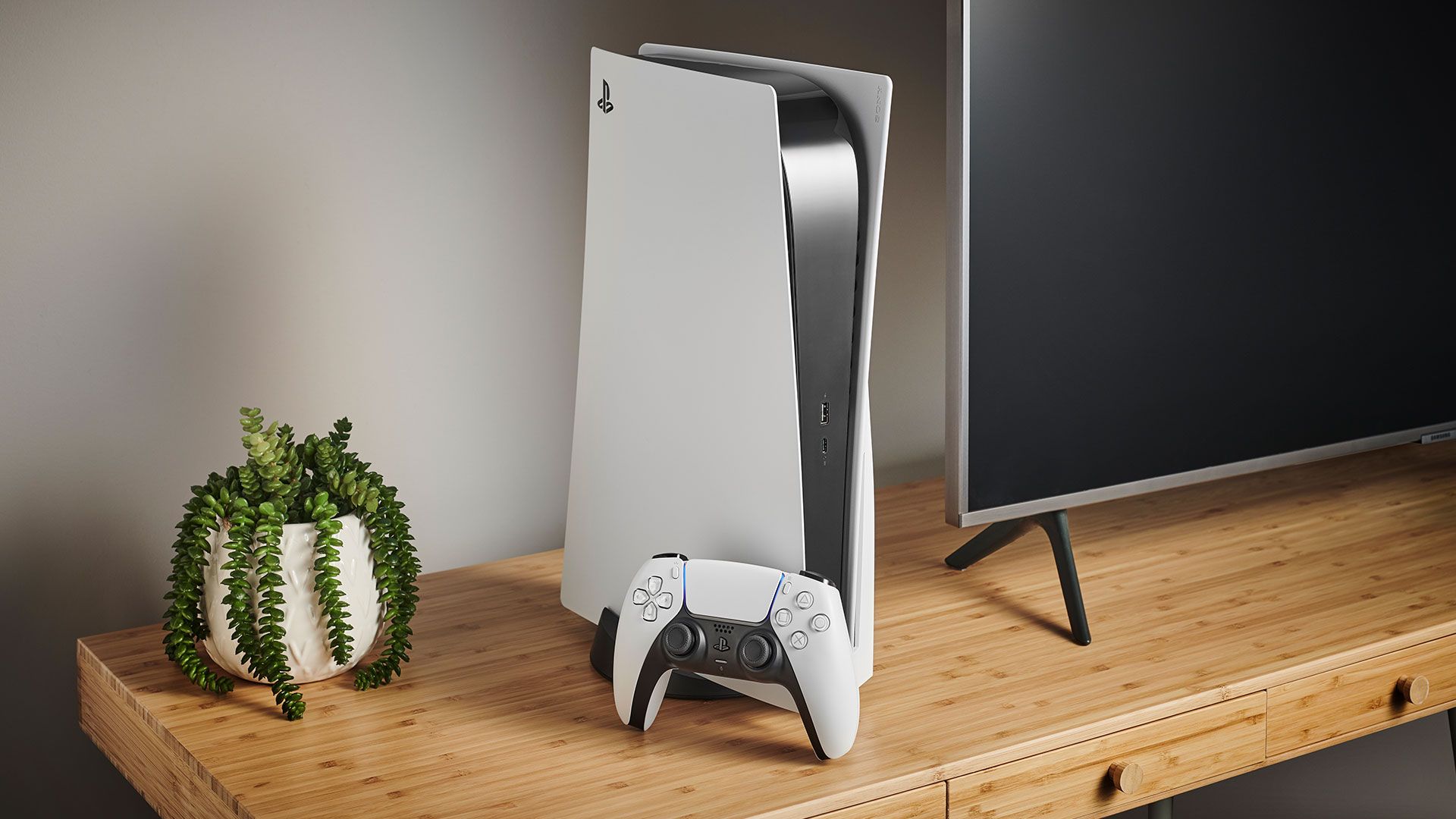
Once you have unboxed your PlayStation 5, the first decision involves its placement: horizontal or vertical. The console is designed for both orientations, but securing it correctly is essential. For vertical placement, affix the base plate for stability. If you choose horizontal placement, simply clip the base onto the side. Ensure that the buttons and disc drive are oriented to the left, as positioning them incorrectly may lead to operational issues.
After establishing the console’s position, connect the power and HDMI cables. Turning on the PS5 requires locating the power button, situated on the front panel. There are two buttons: the larger one, which is the power button, and a smaller one for disc ejection, applicable only if you possess the standard edition. Notably, the buttons are labeled in black on a black surface, so visibility may vary depending on your lighting conditions.
Once powered on, the setup process continues through the on-screen prompts. You can also configure the Rest Mode settings at this stage, allowing your console to perform tasks like downloading updates while in standby mode.
Connecting the DualSense Controller
To synchronize the DualSense controller, connect it to the PS5 using the provided USB-C cable. This connection ensures initial compatibility, and subsequent firmware updates can be conducted wirelessly. The DualSense controller features a built-in microphone, which may be useful for communication during gameplay. However, it is advisable to mute the microphone to avoid unintended broadcasting during online play.
For players who prefer customized controls, the PS5 system offers an invert camera setting to adjust vertical movements. Additionally, the adaptive triggers and haptic feedback can be tailored according to personal preferences. If you have an old DualShock 4 controller, you can still utilize it for PS4 games, offering convenience for couch co-op sessions.
Accessing Games and Media
Playing games on the PS5 can be accomplished in two primary ways: inserting a disc, if equipped, or downloading titles from the PlayStation Store. Navigate to the store icon on the main console screen to explore available games. Once selected, you can monitor your download progress through the PS5 download history. For users with multiple PlayStation Network accounts, the Primary console setting enables game sharing.
The PS5 also allows players to capture screenshots and video clips during gameplay. These media files are stored in the PS5 Media Gallery, and settings can be adjusted for different formats. Importantly, the console supports PS4 game titles, enabling users to either insert original discs or download them from the store. Transferring games from a PS4 to a PS5 can be done using an ethernet cable or Wi-Fi, and external hard drives can be connected directly for ease of access.
Beyond gaming, the PS5 serves as a multimedia device capable of playing Blu-ray movies, including 4K Ultra HD Blu-ray discs, providing an enhanced viewing experience.
Troubleshooting Common Issues
While the PS5 is designed for seamless operation, issues can occasionally arise. The system interface typically guides users through troubleshooting steps. For situations where the controller fails to charge, the issue might stem from an incompatible cable or inadequate power supply from the USB socket.
For more complex issues, the PlayStation Support website offers a comprehensive range of guidance categorized by specific problems and solutions. Familiarizing yourself with common error codes can also expedite the troubleshooting process.
With this guide, you are equipped to set up your PlayStation 5, install games, and dive into the gaming experience. For recommendations on top titles or information on upcoming releases, additional resources are readily available to enhance your PS5 journey.