






































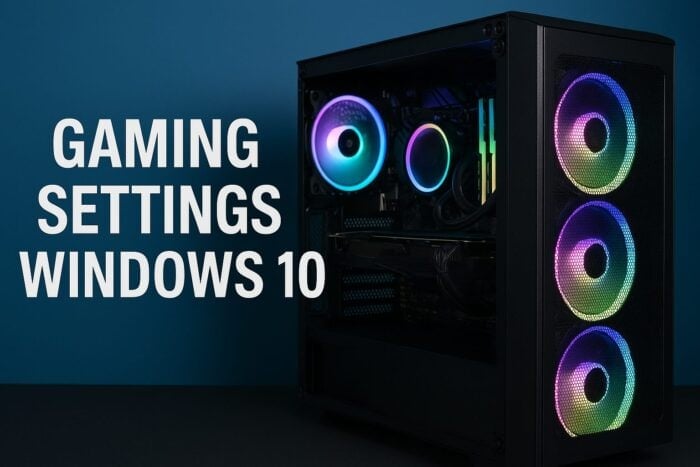
Windows 10 has introduced a dedicated Gaming section designed to enhance gameplay, streamline gameplay captures, and optimize graphics processing unit (GPU) performance. This article provides an overview of the various settings available, enabling users to select the best configurations for a fluid gaming experience.
Understanding the Key Gaming Settings
The Xbox Game Bar serves as an overlay that monitors system performance in real-time. Users can access performance metrics such as frames per second (FPS), adjust audio settings, and communicate with friends without exiting their games. Additionally, the Game Bar allows for the management of performance widgets that display CPU, GPU, RAM, and network load. For detailed guidance on maximizing the Xbox Game Bar’s features, refer to dedicated resources on its usage.
The Captures menu within Windows 10 governs how gameplay clips and screenshots are recorded. Users can customize parameters such as capture resolution, frame rate, audio quality, and the duration of background recordings. While higher settings can enhance the quality of captured clips, they also increase the load on CPU and storage during gameplay. For further insights into optimizing recording options, consult guides focused on screen capture and video recording.
Performance Enhancement and Resource Management
Game Mode is another critical feature that directs system resources specifically to the game being played. This setting limits background interruptions, resulting in improved frame pacing and reduced stutter across both high-end and low-end hardware configurations. By allocating more CPU and GPU resources to the active game, players can expect a more consistent performance.
Xbox Networking is an important tool for assessing network performance. It verifies the Network Address Translation (NAT) type, latency, and readiness for multiplayer play. By identifying potential connectivity issues affecting voice chat and online lobbies, users can maintain smoother online gaming experiences. Keeping latency and packet loss low is essential for optimal gameplay.
The Graphics Settings allow users to designate a High Performance mode for specific games. This setting instructs Windows to utilize the dedicated GPU more effectively, ensuring a stronger and more reliable performance. When compatible hardware is available, users can also enable Hardware Accelerated GPU Scheduling, which reduces latency and enhances frame pacing during gameplay.
These gaming settings in Windows 10 are designed to optimize performance, improve recording quality, and facilitate smoother online matches. Players should adjust each category based on their hardware specifications and preferred gaming titles. Given that each system functions differently, experimenting with various combinations is advisable for achieving the best gaming experience.