


































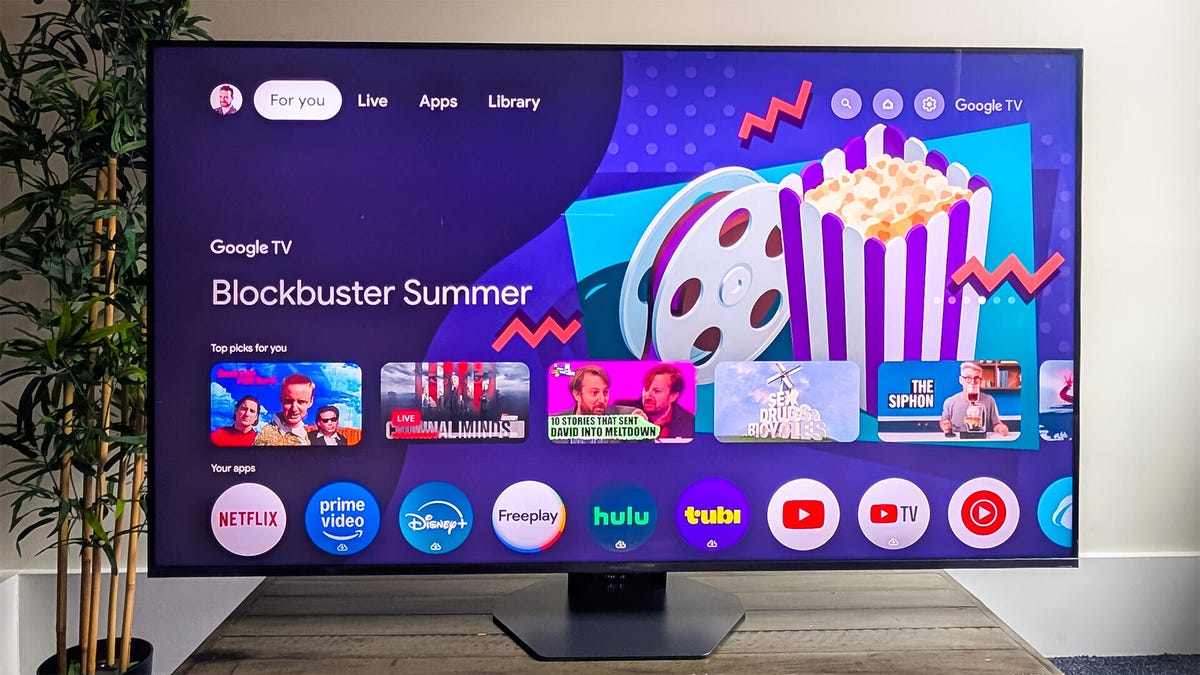
New Hisense TVs can significantly enhance your viewing experience with a few simple adjustments to their picture settings. Whether you just unboxed a new model or have been using one for some time, fine-tuning these settings helps ensure optimal image quality without requiring any specialized knowledge or equipment.
Initial Setup and Picture Mode Selection
After connecting your Hisense TV to Wi-Fi and opting out of any data sharing policies, you can begin adjusting the picture settings. Access these through the Settings menu, typically found under “Display & Sound” and then “Picture.” Note that some models may vary in their user interface, so the exact navigation may differ.
It’s important to understand that changes made to picture settings may only apply to specific inputs, such as HDMI 1 for a cable box. If you wish to apply the same settings across multiple inputs, look for the “Apply Picture Settings” option.
The most impactful adjustment is changing the picture mode. Hisense TVs come with various modes categorized into two main types: dynamic modes like Vivid and Sports, which enhance brightness and color temperature, and cinematic modes such as Theater Day, Theater Night, and Filmmaker. The latter options are designed to provide a more authentic viewing experience, closely aligning with the creators’ intentions for scripted content.
For those who frequently watch HDR content, the TV will automatically switch to an HDR picture mode, which includes additional settings tailored for high dynamic range viewing. If you prefer a consistent experience, it’s advisable to keep the TV set to one of the cinematic modes for accuracy in color and image quality.
Fine-Tuning Picture Settings
Once you have selected a suitable picture mode, you can further refine the settings to suit your viewing environment. The brightness setting adjusts the overall light output, while local dimming and peak brightness can remain at their default settings unless you find certain areas of the image excessively bright.
The gamma setting is another crucial aspect, as it determines the brightness of medium-brightness objects. A typical gamma range falls between 2.0 and 2.4, with 2.2 being a good starting point. Adjusting gamma incorrectly can lead to a washed-out image, so it’s essential to test a few settings to find what looks best in your specific lighting conditions.
Contrast and black level settings also deserve attention. The contrast control adjusts the brightness of the brightest parts of the image. A well-calibrated contrast setting should maintain detail in bright objects without making the overall picture appear too dim or overly bright. The black level setting, sometimes referred to as brightness, affects how dark the dark areas of the image appear. Achieving the right balance ensures that shadow details remain visible without losing overall image quality.
For color and hue, Hisense TVs typically come calibrated out of the box, and adjustments are rarely necessary. It’s recommended to keep the Dynamic Color Enhancer off, as it can lead to unnatural color saturation.
Lastly, consider the sharpness and clarity settings. While some models feature additional sharpness options, it’s generally best to keep sharpness near zero to achieve the most natural look. Features like Smooth Gradient can help reduce banding in solid colors, while noise reduction settings can often be left off to preserve image detail.
For users willing to explore deeper settings, motion enhancement features may be available. This setting can create a “soap opera effect” by generating additional frames to reduce motion blur. Many viewers prefer turning this feature off, as it can distort the intended cinematic experience.
By taking the time to adjust these settings, you can unlock the full potential of your Hisense TV, transforming your viewing experience into one that is both visually stunning and true to the content creators’ vision.