








































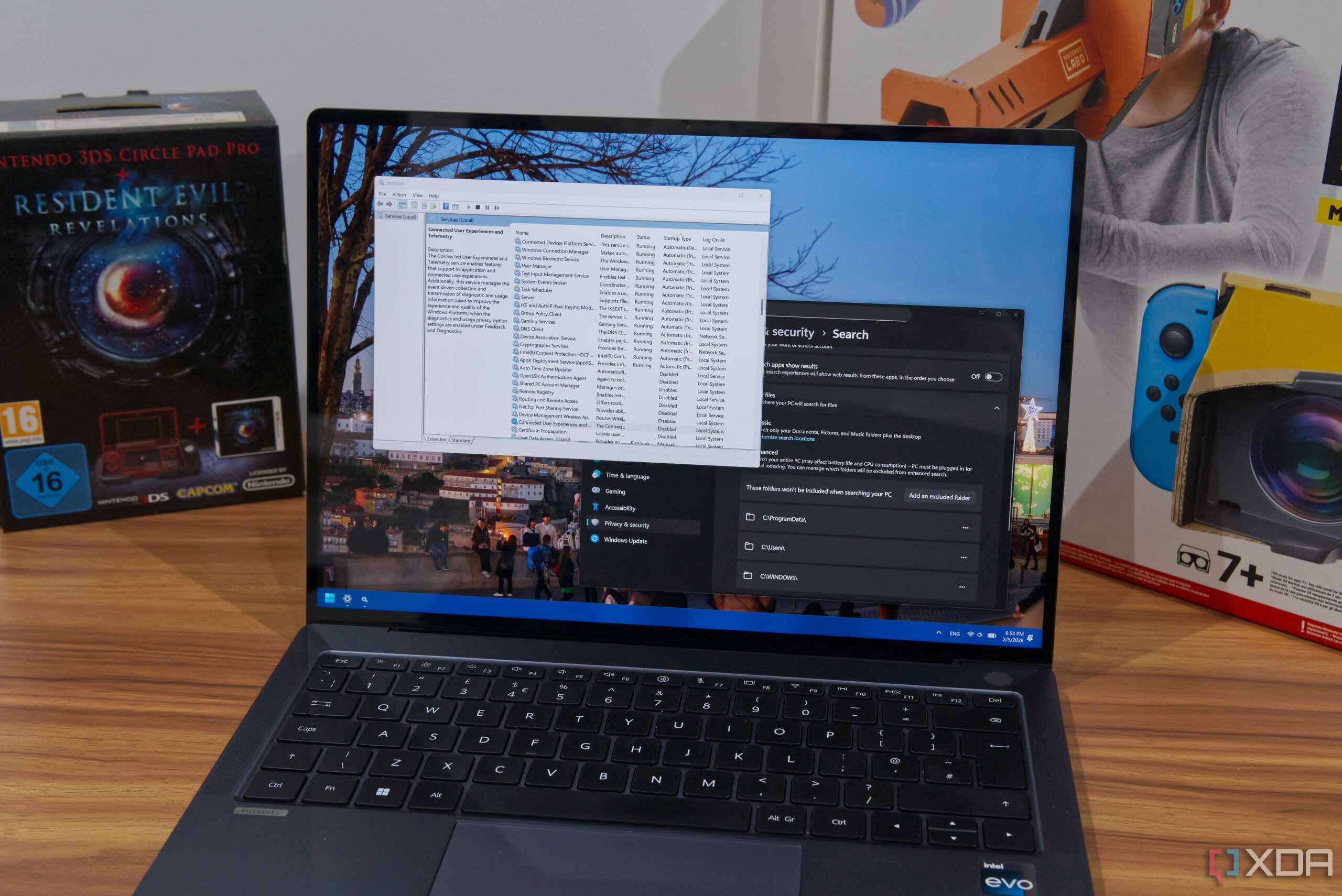
Windows 11 has faced criticism for its perceived inefficiencies and the presence of features that many users find unnecessary. With complaints ranging from intrusive ads to sluggish performance, individuals are seeking ways to streamline their experience. Fortunately, there are several features that can be disabled to improve system performance and create a more user-friendly environment.
Key Features to Disable for Improved Performance
One of the most commonly disliked aspects of Windows 11 is its telemetry data collection. This feature collects data about user configurations and usage to help Microsoft address future issues. However, given the mixed reliability of Windows 11 in recent years, users may find little benefit in keeping this feature enabled. Disabling Windows telemetry can be done through the Services dialog, found by searching for it in the Start menu under the name Connected User Experiences and Telemetry. Turning off this service may free up system resources with minimal downsides.
Another feature that can contribute to a sluggish experience is Windows Search indexing. Many users find that searching for files can be a frustrating ordeal, often yielding incomplete or slow results. By disabling the Windows Search service via the Services control panel, users can prevent the Start menu from searching for files. For those concerned about file retrieval, utilizing third-party software like Everything by Voidtools can provide a faster and more efficient search experience.
Streamlining Web Searches and Browsing
Windows 11 also integrates Bing into its taskbar search functionality, which can detract from the user experience. This built-in feature typically opens results in Microsoft Edge, regardless of the user’s default browser. Users can disable Bing searches through the Settings app, navigating to Privacy & Security > Search. For web searches, relying on a preferred browser or using a launcher with search plugins can be a more effective approach.
Microsoft Edge, which comes pre-installed, has drawn criticism for its limited removal options. Although the European Commission has mandated that users in the European Economic Area can uninstall Edge, options for others are more limited. Some users have discovered ways to bypass this restriction by altering system settings to mimic EEA compliance, thus allowing for the removal of Edge and alleviating any accidental launches.
Widgets, initially perceived as an exciting new feature, have disappointed many users due to their reliance on web services and sluggish performance. While there is no option to remove widgets entirely, users can disable the Widgets button on the taskbar, which can reduce resource usage without fully eliminating the feature.
OneDrive, which automatically backs up user files once a Microsoft account is signed in, can also be a source of frustration. The service offers only 5GB of free storage, and syncing desktop icons often leads to issues if the corresponding apps are not installed. Uninstalling OneDrive can prevent unnecessary background processes, while users who prefer to retain some functionality can disable automatic folder backups to save bandwidth and storage space.
Since March 2023, Microsoft has been rolling out its Copilot assistant across various applications within Windows. While some users may appreciate these AI features, others find them intrusive. Uninstalling the Copilot app is a straightforward process, and for those looking to remove all AI-related features, a PowerShell script named RemoveWindowsAI can help streamline the experience.
By disabling these features, Windows 11 users can create a cleaner, more efficient operating environment. As those familiar with platforms like macOS and Linux might agree, several of the default settings in Windows can feel unnecessary. Implementing these adjustments may significantly enhance usability and overall satisfaction with the operating system.